
Free UI Templates Library: Ready-to-Use Designs for Mobile Apps, Web Apps & Landing Pages
Discover Komposo's free UI template library with production-ready designs for mobile apps, web apps, and landing pages. Browse, preview, and customize templates with AI-powered design tools.
Finding the right starting point for your next project shouldn't take hours of searching. That's why we built Komposo's UI template library—a curated collection of production-ready designs that you can browse, preview, and customize in seconds.
Whether you're building a mobile app, web application, or marketing landing page, our free UI templates give you a professional foundation that you can make your own with AI-powered customization.
In this guide, you'll discover how to find the perfect template, customize it for your needs, and export production-ready code—all without starting from scratch.
What Is the Free Komposo Template Library?
The Komposo template library is a free, growing collection of professionally designed UI templates spanning multiple categories:
- Mobile App Templates: iOS and Android app screens with native UI patterns
- Web App Templates: Dashboards, admin panels, and SaaS interfaces
- Landing Page Templates: Marketing pages, portfolios, and product showcases
- UI Components: Cards, forms, navigation, and reusable interface elements
- Animations: Interactive elements with smooth motion design
- Collections: Multi-screen template sets for complete app flows
Every template is free to browse and preview. When you find one you like, use it as a starting point and customize it with AI—changing colors, layouts, content, and more through simple text prompts.
Why Use UI Templates?
Before diving into the library, let's talk about why starting with templates makes sense:
Ship Faster
Starting from a blank canvas adds hours (or days) to every project. Templates give you a production-quality foundation in seconds, letting you focus on what makes your product unique rather than rebuilding common UI patterns.
Learn Best Practices
Each template demonstrates proven design patterns—proper spacing, visual hierarchy, color usage, and responsive layouts. Even if you modify everything, you're learning from designs that work.
Maintain Consistency
Templates ensure consistent quality across your project. When you use templates from the same collection, your entire app or site maintains a cohesive look and feel.
Get Production-Ready Code
Unlike image-based templates, Komposo templates export clean HTML/CSS and React code. There's no translation step from design to development—the code is ready to use.
How to Browse the Free Template Library
Getting started with the free template library takes about 30 seconds:
Step 1: Open the Templates Page
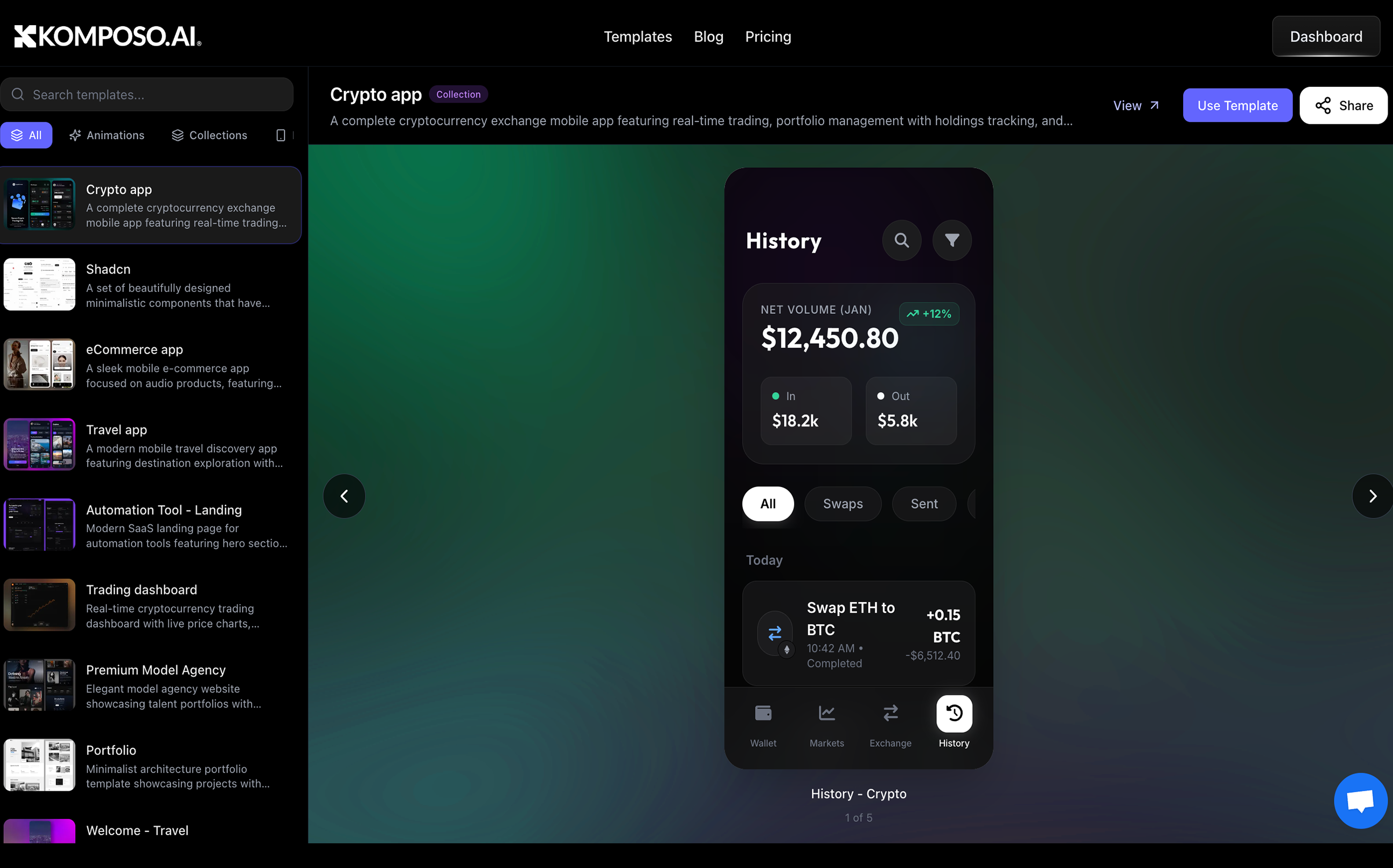
Navigate to komposo.ai/templates to access the full template browser. You'll see a sidebar with all available templates and a live preview panel.
Step 2: Filter by Category
Use the category tabs to narrow down your search:
| Category | What You'll Find |
|---|---|
| All | Every template in the library |
| Animations | Interactive elements with motion |
| Collections | Multi-screen template sets |
| Mobile | iOS/Android app screens |
| Web Apps | Dashboards and SaaS interfaces |
| Landing Pages | Marketing and product pages |
| Components | Individual UI elements |
Step 3: Search for Specific Designs
Use the search bar to find templates by keyword. Try searches like:
- "dashboard"
- "crypto"
- "ecommerce"
- "travel"
- "landing"
- "chart"
The search checks template titles, descriptions, and tags to find relevant matches.
Step 4: Preview Templates
Click any template to see a live preview in the right panel. For mobile templates, you'll see a phone-frame preview at actual device dimensions. For web templates, you'll see a full-width preview.
Collections show a carousel view—use the arrows to browse through all screens in the set.
Free Template Categories Explained
Let's explore each category in detail so you can find exactly what you need.
Mobile App Templates
Our mobile templates are designed at iPhone dimensions (390px × 844px) with proper mobile UI patterns. Currently available across three app themes:
Travel App Screens:
- Welcome, Home, Explore, Saved destinations, and Profile screens for travel booking apps
E-commerce App Screens:
- Welcome, Home, Explore, Cart, and Profile screens for shopping apps
Crypto App Screens:
- Welcome, Wallet, Markets, Exchange, and History screens for cryptocurrency apps
Each mobile template follows platform conventions while remaining customizable for both iOS and Android aesthetics.
Browse Free Mobile Templates →
Web App Templates
Web app templates are designed at 1440px width—perfect for dashboards, admin panels, and SaaS products. Available templates include:
- Trading Dashboard: Real-time cryptocurrency trading dashboard with live price charts
- Glassmorphic Dashboard: Analytics widgets and revenue charts with modern glass effects
- Poker Dashboard: Live game tables and tournament listings
- Education Dashboard: Reading goals and book recommendations interface
Browse Free Web App Templates →
Landing Page Templates
Marketing templates are optimized for conversion. Available templates include:
- Automation Tool - Landing: Modern SaaS landing page for automation tools with hero section
- Premium Model Agency: Elegant model agency website showcasing talent portfolios
- Portfolio: Minimalist architecture portfolio template showcasing projects
- Modern Landing: Dark theme landing page with hero section, pricing tiers, and features
- Luxury Restaurant: Elegant fine dining website showcasing gourmet cuisine
- Landing - Health & Wellness: Holistic health and wellness landing page with organic design
Browse Free Landing Page Templates →
UI Components
Sometimes you don't need a full page—just a single element. Available component templates:
- Accordion: Collapsible sections for organizing expandable content
- Alert: Customizable alerts with icons, titles, and descriptions
- Badge: Versatile badge styles for status indicators
- Calendar: Interactive calendar widget with month/year navigation
- Card: Login card with email, password fields and social auth
- Carousel: Image carousel with smooth transitions and navigation
- Chart: Interactive bar chart for analytics data
- Command: Command palette with search and keyboard shortcuts
- Empty State: Clean empty state UI with icon, heading, and action
- Form: Payment form with card details and billing fields
- Sidebar: Responsive sidebar navigation with organized menu sections
- Data Table: Data table with filtering, sorting, and pagination
These work as building blocks you can combine into custom layouts.
Browse Free Component Templates →
Animation Templates
Add life to your interfaces with motion. Available animation templates:
- Aurora: Luminous wave field effects for eye-catching hero sections
- Stellar: Cosmic particle effects with interactive elements
- Neon: Interactive light trails with vibrant colors
- Prism: Modern organic metaball flows for dynamic backgrounds
Each animation template includes interactive controls so you can customize timing, colors, and behavior before using.
How to Add Animations to Your Website
Here's a quick demo showing how easy it is to add UI animations to any page:
How to add UI animations into your website in seconds
— Moritz Kremb (@moritzkremb) January 21, 2026
Just added 4 animations into our template library (and will be adding more soon!)
1. Pick an animation
2. Open in canvas
3. Tell AI to add it to your website. Easy. pic.twitter.com/tL7mBGnaA4
The workflow is simple:
- Pick an animation from the animation templates
- Click "Use Template" to open it in your canvas
- Create your landing page (or any other screen) in the same project
- Edit a section (like the hero) and use the
@reference to mention your animation screen - Generate — the AI combines the animation with your page seamlessly
This @ reference feature is powerful for mixing and matching elements across your project. You can pull animations, components, or styling from any screen into another.
Browse Free Animation Templates →
Collections
Collections are coordinated sets of multiple screens—perfect when you need a complete app flow rather than individual pages.
When you use a collection, all screens share consistent styling—typography, colors, spacing, and component design stay unified.
Browse Free Template Collections →
How to Use a Template
Found a template you like? Here's how to make it yours:
Step 1: Click "Use Template"
From the template preview, click the "Use Template" button. This opens the template in Komposo's builder where you can customize it.
Step 2: Edit with AI
Once in the builder, you can modify any aspect using natural language prompts:
Change the color scheme:
PromptChange the primary color to purple and use a dark background
Update content:
PromptReplace the fitness content with a meditation app theme
Modify layout:
PromptMove the navigation to the top and add a search bar
Add elements:
PromptAdd a notification badge to the profile icon and include a dark mode toggle
The AI understands your design context and makes changes while maintaining visual consistency.
Step 3: Continue Building
Your customized template becomes the foundation for more screens. Reference it when generating new pages:
PromptCreate a settings page that matches the style of `@HomeScreen`
This ensures your entire app maintains consistent design language.
Step 4: Export Your Design
When you're ready, export your design in multiple formats:
- Code Export: Clean HTML/CSS or React code ready for development
- Figma Export: Transfer to Figma for team collaboration
- Image Export: PNG screenshots for presentations
Tips for Getting the Most from Templates
Start with Structure, Not Style
Templates give you proven layouts and patterns. Even if you change every color and font, the underlying structure—where elements are placed and how they relate—remains solid.
Use Collections for Consistency
When building a multi-screen app, start with a collection rather than individual templates. This guarantees your screens feel connected.
Combine Templates
You can mix elements from different templates. Generate one template, then use AI to add elements inspired by another:
PromptAdd a card layout like the dashboard template but keep the current navigation
Save Your Customizations
After customizing a template, your version lives in your project. You can share it, duplicate it, or use it as a reference for future screens.
Check Multiple Categories
A "fitness dashboard" might work perfectly for a "habit tracker" app with minor text changes. Don't limit yourself to templates that match your exact use case—look for structural similarities.
Template Library FAQ
Are the templates really free?
Yes. You can browse all templates and use them in your projects at no cost. Credits are only used when you make AI-powered edits—viewing and using base templates is free.
Can I use templates for commercial projects?
Absolutely. All templates are licensed for commercial use. Build client projects, launch startups, or create products for sale—no attribution required.
How often are new templates added?
The library is constantly growing with new categories, styles, and design patterns based on user requests.
Can I request specific templates?
Yes! If there's a template type you'd find valuable, let us know through our support channels.
Do templates include responsive versions?
Mobile templates are optimized for phone dimensions. Web templates are designed for desktop but export responsive code using Tailwind CSS. For full responsive coverage, you may want to generate separate mobile and desktop versions.
What code framework do templates use?
Templates export as HTML with Tailwind CSS classes. This works with any framework—React, Vue, Svelte, plain HTML, or mobile development with web views. The code is intentionally framework-agnostic for maximum flexibility.
Conclusion
Starting from templates isn't taking a shortcut—it's working smart. Every hour you save on building standard UI patterns is an hour you can invest in what makes your product unique.
The free Komposo template library gives you:
- Free templates across mobile, web, and landing page categories
- Live previews to see exactly what you're getting
- AI-powered customization to make any template your own
- Production-ready code that exports to HTML, CSS, and React
Whether you're prototyping a new idea, building a client project, or launching your own product, there's a template that gives you the foundation you need.
The fastest path from idea to finished product starts with the right starting point.
Ready to find your perfect template? Browse the Free Template Library →
Last updated: January 21, 2026
Related Articles
Lovable Alternatives in 2026: 6 Better Options for Your Use Case
Looking for a Lovable alternative? We compare the 6 best Lovable alternatives in 2026—Komposo, Bolt.new, v0, Google Stitch, Framer, and Cursor—with honest pros, cons, pricing, and a use case matrix to find the right tool.
Best v0 Alternatives in 2026: 7 Tools Compared
Looking for a v0 alternative? We compare the 7 best Vercel v0 alternatives in 2026—Komposo, Bolt.new, Lovable, Google Stitch, Cursor, Framer, and UX Pilot—with honest pros, cons, pricing, and a decision tree to find the right tool.
Best AI UI Generators for SaaS Founders in 2026
Discover the best AI UI generators for SaaS founders. Compare top tools like Komposo, Lovable, Bolt.new, v0, and more to build your MVP faster and cheaper.