
How to Create Beautiful Mobile App Designs with AI in Minutes
Learn how to use Komposo's AI mobile design generator to create stunning iOS and Android app interfaces. Complete guide with prompt templates, tips, and step-by-step instructions for creating professional mobile UI designs.
Creating professional mobile app designs used to require weeks of work in complex design tools—or hiring expensive designers. Not anymore. With AI mobile design generators like Komposo, you can create stunning iOS and Android app interfaces in minutes, not days.
In this complete guide, you'll learn exactly how to use Komposo's AI mobile design generator to create beautiful mobile app designs. We'll cover everything from getting started to advanced prompt techniques, with real examples you can use right away.
What Is an AI Mobile Design Generator?
An AI mobile design generator transforms text descriptions or images into complete mobile app interface designs. Instead of manually placing every button, card, and navigation element, you describe what you want—and the AI creates it for you.
Komposo's mobile generator is specifically optimized for mobile-first design. It generates designs at iPhone 14 dimensions (390px × 844px) with proper mobile UI patterns like bottom tab navigation, status bars, safe areas, and thumb-friendly touch targets built in.
The key difference from general AI tools: mobile-specific generation understands the unique constraints and patterns of mobile interfaces. Your designs come out looking like real apps, not shrunk-down websites.
Why Use AI for Mobile App Design?
Before diving into the how, let's be clear about why this matters:
Speed
Traditional mobile design workflow: sketch ideas → create wireframes → design mockups → iterate based on feedback → export assets. This takes days or weeks. With AI, you go from idea to polished mockup in under a minute.
No Design Skills Required
You don't need to master Figma, understand color theory, or know what a "safe area" is. The AI handles the design fundamentals while you focus on what matters—your app's concept and user experience.
Faster Iteration
Testing multiple concepts is expensive with traditional design. With AI, you can generate 10 different approaches to your home screen in the time it would take to manually create one. This lets you explore more ideas and find the best solution faster.
Production-Ready Code
Unlike static mockups, Komposo exports clean HTML/CSS code that you can use as a starting point for development. This bridges the gap between design and development.
Getting Started: Your First Mobile Design
Let's walk through creating your first mobile app design step by step.
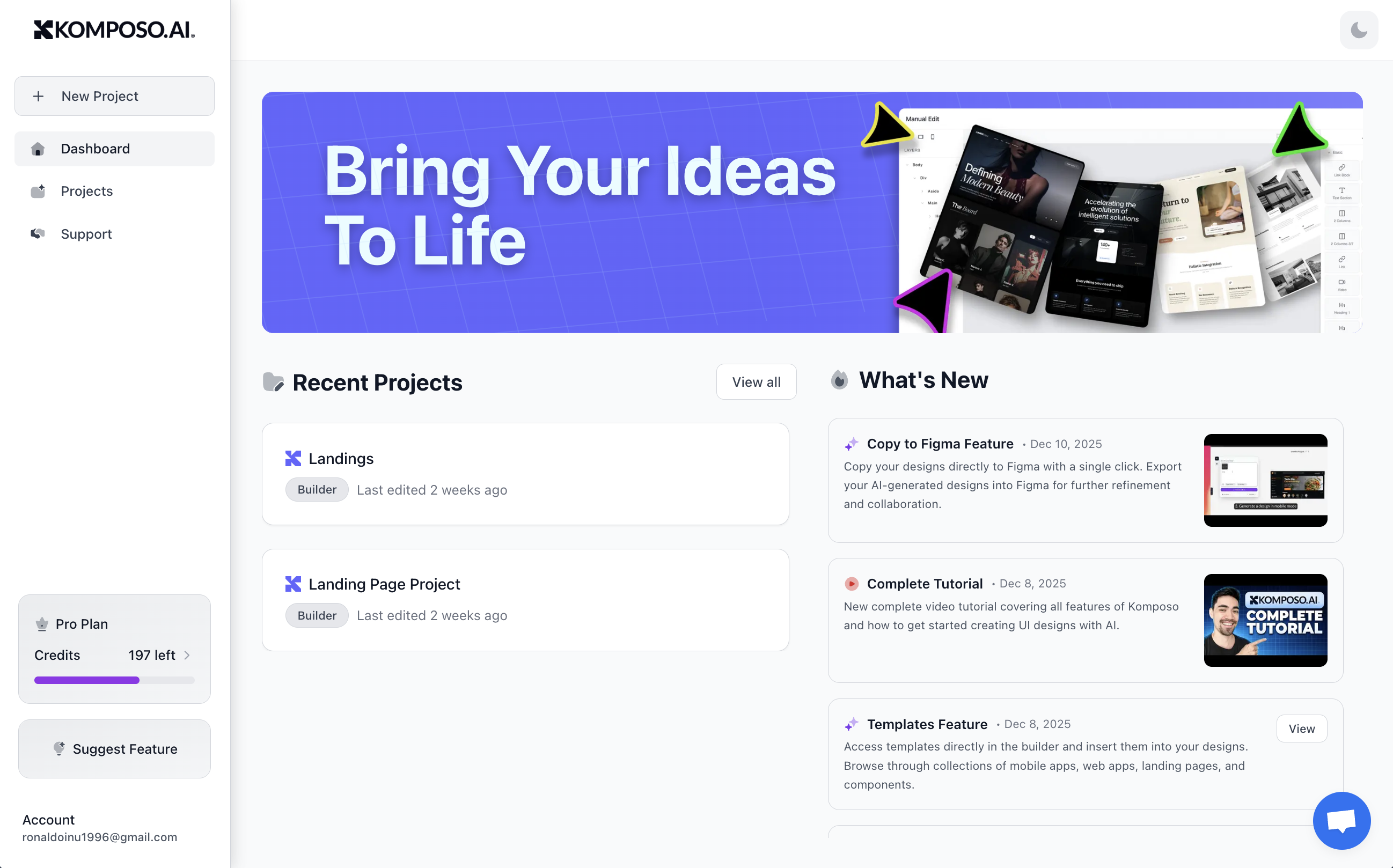
Step 1: Open the Builder
Navigate to Komposo's builder and create a new project, or open an existing one. You'll see the canvas with an input area where you can start generating.
Step 2: Select Mobile Mode
Select Mobile App mode from the mode selector—indicated by the smartphone icon. This ensures your designs are generated at proper mobile dimensions with mobile-specific UI patterns.
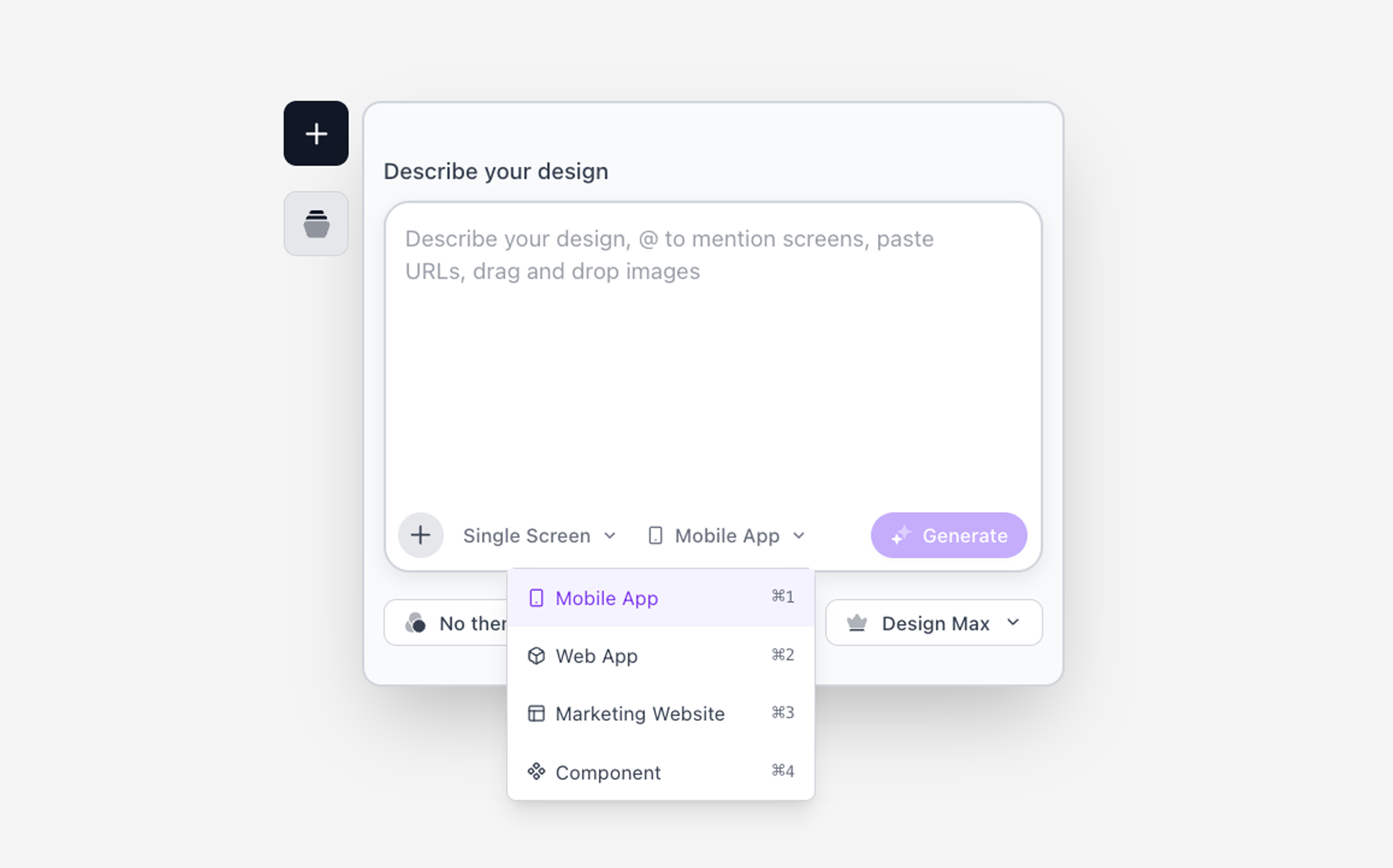
The four available modes are:
- Mobile App: 390px width for iOS/Android screens
- Web App: 1440px width for dashboards and applications
- Marketing Website: 1440px width for landing pages
- Component: 900px width for individual UI components
Make sure Mobile App is selected before generating.
Step 3: Write Your Prompt
This is where the magic happens. Describe the mobile screen you want to create. Here's a simple example:
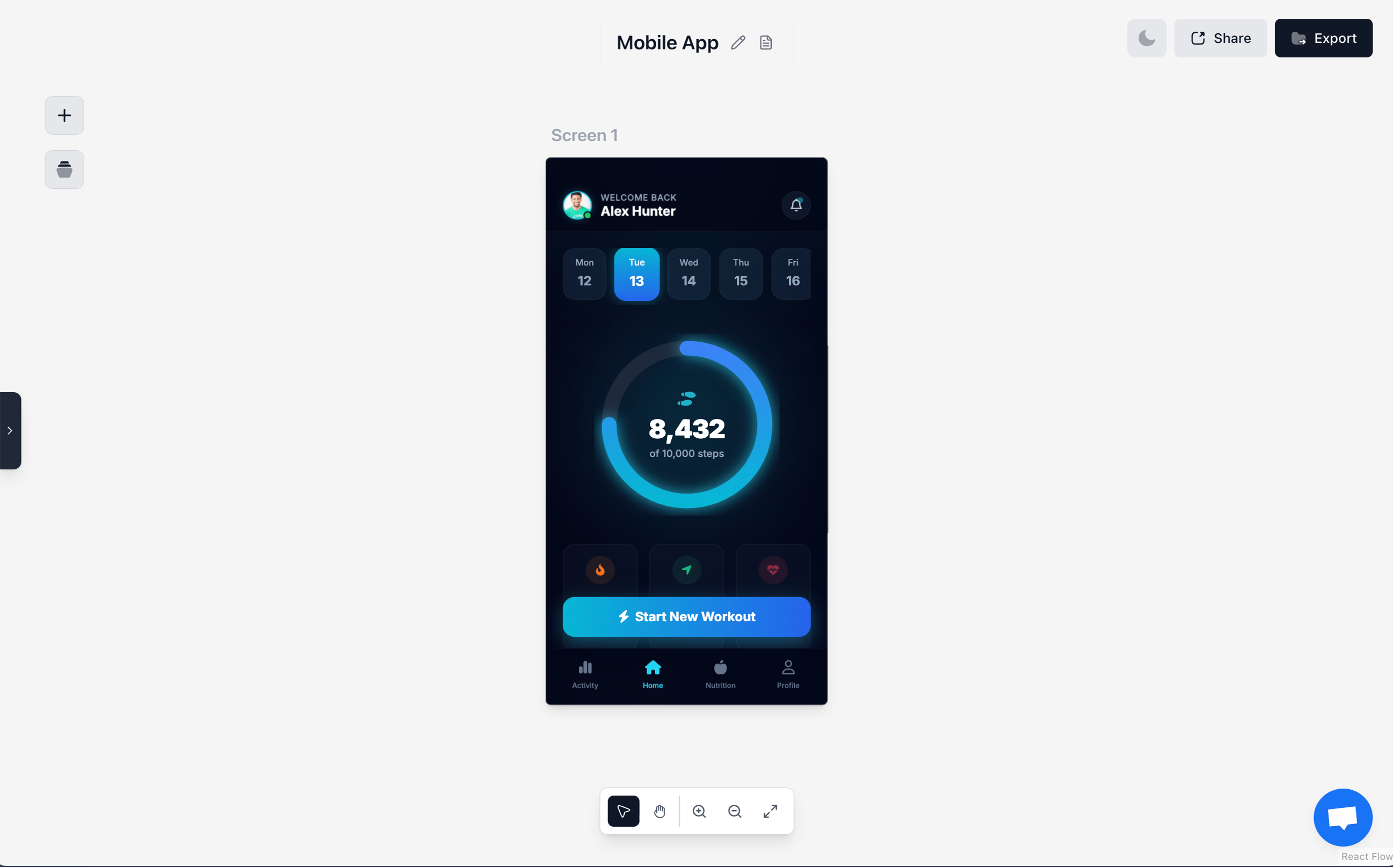
PromptDesign a fitness tracking app home screen with today's workout summary, step count progress ring, calorie counter, and quick action buttons to start a new workout. Use a dark theme with electric blue accents.
Click Generate and watch as the AI creates your mobile design in real-time, streaming the result into the canvas.
Step 4: Refine and Iterate
Your first generation is a starting point. Use the edit feature to refine specific elements:
PromptMake the progress ring larger and add a weekly activity graph below it.
Each edit builds on your existing design, letting you fine-tune until it's exactly right.
Mobile Prompt Templates That Work
The quality of your AI-generated design depends heavily on your prompt. Here are proven templates for common mobile screens:
Home Screen / Dashboard
PromptDesign a [app type] home screen with [primary content], [secondary content], and [navigation pattern]. Include a [header style] at the top and [action buttons]. Use [theme] colors with [accent color] highlights.
Example:
PromptDesign a banking app home screen with account balance card prominently displayed, recent transactions list, and quick transfer buttons. Include a clean header with notification icon and bottom tab navigation. Use a light theme with deep blue accents.
Onboarding Flow
PromptCreate a mobile onboarding screen for [app type] that shows [value proposition]. Include [illustration style], a headline, supporting text, and a prominent 'Continue' button with skip option. Use [color scheme] colors.
Example:
PromptCreate a mobile onboarding screen for a meditation app that shows the breathing exercise feature. Include a calming illustration with soft gradients, a welcoming headline, short benefit text, and a prominent 'Get Started' button. Use calming blue and purple tones.
Profile / Settings Screen
PromptDesign a profile screen for [app type] with user avatar, name display, and organized settings sections for [section 1], [section 2], and [section 3]. Include [specific controls like toggles or dropdowns].
Example:
PromptDesign a profile screen for a social fitness app with user avatar, name and stats display, and organized settings sections for account, notifications, and privacy. Include toggle switches for key settings and a sign-out option at the bottom.
List / Feed Screen
PromptDesign a [content type] list screen with [card/row style], showing [key information per item]. Include search bar at top, filter options, and [empty state consideration]. Use [visual style].
Example:
PromptDesign a recipe list screen with card-style entries showing food image, recipe name, cooking time, and difficulty badge. Include search bar at top with category filter pills. Use warm, appetizing colors with generous spacing.
Detail / Content Screen
PromptDesign a detail screen for [item type] with [hero element], key information section showing [details], action buttons for [primary action] and [secondary action], and related content below.
Example:
PromptDesign a product detail screen for a sneaker shopping app with large product image gallery, price and size selector, 'Add to Cart' and 'Save' buttons, product description section, and customer reviews below.
Advanced Techniques for Better Results
Use Reference Images
Komposo can analyze uploaded images to understand the style and structure you want. This is incredibly powerful for:
- Competitor analysis: Upload a screenshot of an app you admire, then describe what you want differently
- Converting sketches: Upload hand-drawn wireframes and let AI transform them into polished designs
- Style matching: Upload brand assets to guide the AI's color and typography choices
To use this, click the image upload button in the input area and attach your reference before writing your prompt.
Generate Multiple Screens at Once
For complete app flows, use Multi Screen mode. Instead of generating one screen at a time, describe your entire app:
PromptDesign a habit tracking app with screens for: daily habits checklist, habit creation form, weekly progress dashboard, and settings page. Include consistent navigation and a motivating color scheme.
The AI will extract individual screens, suggest a coherent theme, and let you review before generating all screens in parallel.
Use Section References
When you have an existing screen you like, you can reference it when creating new screens. Use the @ mention feature to reference existing nodes:
PromptCreate a notification settings screen that matches the style of @HomeScreen, with toggle switches for each notification type.
This ensures design consistency across your app.
Apply Themes for Consistency
Komposo's theme system lets you define colors, typography, and spacing once, then apply them to all your screens. Access themes from the palette icon in the generation interface.
Available public themes include:
- OpenAI: Clean, minimal light theme
- Claude: Warm, approachable aesthetic
- Brutalism: Bold, raw design language
- Material: Google's Material Design patterns
- Airbnb: Friendly, modern style
- Twitter/X: Dark mode optimized
You can also create custom themes or extract themes from existing screens to maintain brand consistency.
Mobile Design Best Practices
Even with AI, understanding mobile design principles helps you write better prompts and evaluate results:
Thumb-Friendly Navigation
Most users hold their phone with one hand. The AI automatically places important actions within the natural thumb zone, but you can reinforce this:
PromptPlace the primary action button at the bottom of the screen within easy thumb reach.
Touch Target Sizes
The AI generates buttons with minimum 44×44px touch targets by default. For critical actions, request larger targets:
PromptMake the 'Add to Cart' button extra large and prominent for easy tapping.
Bottom Tab Navigation
The most common mobile navigation pattern. The AI generates proper tab bars with:
- 4-5 items maximum
- Icons with labels
- Active state indication
- Proper safe area padding for notched phones
Visual Hierarchy
Guide users' eyes to what matters most:
PromptMake the account balance the most prominent element, with secondary stats below and action buttons at the bottom.
Whitespace and Breathing Room
Mobile screens are small. Generous padding prevents the cramped feeling:
PromptUse comfortable spacing between elements. Don't crowd the interface.
Common Mobile Screens to Generate
Here's a checklist of screens most mobile apps need. Use these as a starting point for your project:
Core Screens
- [ ] Splash / Launch screen
- [ ] Onboarding flow (2-4 screens)
- [ ] Login / Sign up
- [ ] Home / Dashboard
- [ ] Main content list or feed
- [ ] Detail view
- [ ] Profile / Account settings
- [ ] Settings / Preferences
Functional Screens
- [ ] Search with filters
- [ ] Notifications list
- [ ] Empty states (no content, no results, errors)
- [ ] Loading states
- [ ] Success confirmations
E-commerce Specific
- [ ] Product listing
- [ ] Product detail
- [ ] Cart
- [ ] Checkout flow
- [ ] Order confirmation
Social / Community
- [ ] User feed
- [ ] Post creation
- [ ] Comments / Replies
- [ ] User profile (own and others)
- [ ] Messaging / Chat
Exporting Your Mobile Designs
Once you're happy with your designs, Komposo offers several export options:
Code Export
Export clean HTML/CSS or React code ready for development. The code includes:
- Proper mobile dimensions and scaling
- Tailwind CSS classes for styling
- Font Awesome icons
- Responsive image placeholders
This code serves as an excellent starting point for React Native, Expo, or mobile web development.
Figma Export
Need to hand off to designers or collaborate with a team? Export directly to Figma with a single click. The design transfers with layers intact for further refinement.
Screenshot Export
Generate PNG screenshots of your designs for:
- Pitch decks and presentations
- App store preview mockups
- Social media sharing
- Documentation
Tips for Better Mobile Prompts
Based on analyzing thousands of successful generations, here's what separates good prompts from great ones:
Be Specific About Content Type
Instead of: "Show some statistics" Try: "Display step count as a circular progress ring, calories burned as a card, and active minutes as a horizontal bar"
Specify Visual Hierarchy
Instead of: "Include user info" Try: "Show user avatar prominently at top, name below it, and stats in a horizontal row underneath"
Name the Navigation Pattern
Instead of: "Add navigation" Try: "Use bottom tab navigation with Home, Search, Create, and Profile tabs"
Reference Real Apps
Instead of: "Make it look modern" Try: "Style similar to Spotify's dark theme with vibrant accent colors on key actions"
Include Functional Details
Instead of: "Add buttons" Try: "Include a floating action button in bottom right for creating new entries, and secondary action icons in the header"
Frequently Asked Questions
How does the AI mobile design generator work?
Komposo uses advanced AI models to interpret your text descriptions and generate HTML/Tailwind CSS code that renders as a visual mobile interface. The mobile mode specifically applies mobile-first design principles, proper dimensions (390px width), and native UI patterns like bottom navigation, status bars, and safe areas.
Can I create iOS and Android designs?
Yes. The generated designs follow platform-agnostic patterns that work for both iOS and Android. For platform-specific styling, specify in your prompt: "Follow iOS design guidelines with SF-style navigation" or "Use Material Design patterns for Android."
What if the first result isn't perfect?
That's expected! Use the edit feature to refine specific elements. Describe what you want changed, and the AI will modify your existing design. Iteration is part of the process—even professional designers rarely nail it on the first try.
Can I generate a complete multi-screen app?
Absolutely. Use Multi Screen mode to describe your entire app at once. The AI will extract individual screens, suggest a consistent theme, and generate all screens with matching styles.
Is the exported code production-ready?
The exported code is clean and well-structured, making it an excellent starting point for development. For production apps, you'll want to add interactivity, state management, and backend integration—but the UI foundation is ready to use.
How is this different from other AI design tools?
Komposo is specifically optimized for UI generation with clean code output. Unlike full-stack builders, we focus on the design layer—which means better visual quality, cleaner code, and more flexibility to integrate into your existing development workflow. The mobile mode is particularly tuned for mobile-first patterns and proper device dimensions.
Conclusion
AI mobile design generation isn't about replacing creativity—it's about removing the technical barriers that slow down your ideas. With Komposo, you can:
- Move faster: Go from concept to polished mobile mockup in minutes
- Explore more: Test multiple design directions without massive time investment
- Focus on what matters: Spend your energy on user experience and product decisions, not pixel pushing
- Bridge the gap: Get production-ready code that makes development easier
The best mobile app designs come from iteration and experimentation. AI makes that iteration virtually free, letting you explore possibilities that would have been impractical with traditional tools.
Whether you're a startup founder validating an app idea, a developer who needs UI designs for a side project, or a product manager communicating a vision to stakeholders—AI mobile design generation gives you a superpower that wasn't possible just a few years ago.
The future of mobile design is here. It starts with a prompt.
Ready to create your first mobile app design? Get started with Komposo free →
Last updated: January 14, 2026
Related Articles
Getting Started with AI UI Design in 2026: A Complete Beginner's Guide
Learn how to leverage AI-powered design tools to create stunning user interfaces in minutes. This comprehensive guide covers everything from basic concepts to advanced techniques.
Lovable Alternatives in 2026: 6 Better Options for Your Use Case
Looking for a Lovable alternative? We compare the 6 best Lovable alternatives in 2026—Komposo, Bolt.new, v0, Google Stitch, Framer, and Cursor—with honest pros, cons, pricing, and a use case matrix to find the right tool.
Best v0 Alternatives in 2026: 7 Tools Compared
Looking for a v0 alternative? We compare the 7 best Vercel v0 alternatives in 2026—Komposo, Bolt.new, Lovable, Google Stitch, Cursor, Framer, and UX Pilot—with honest pros, cons, pricing, and a decision tree to find the right tool.